
Ever drawn a shape that looks almost right, but has a slightly awkward bend? Curve Energy helps you see where your curve needs a little attention.
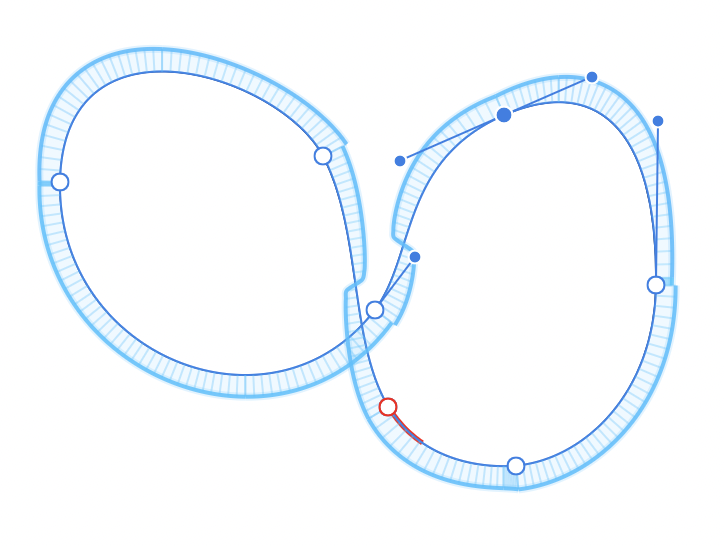
When activated, it displays a band of lines around your curve, like the blue band in the image. Look at how its outer edge flows around the shape. You’re aiming for a smooth transition wherever you want a smooth outline.
To turn on Affinity Curve Energy
- Switch to the Node Tool, Pen Tool or Pencil Tool.
- Go up to the {Context Toolbar}.
- Click/tap the {Settings} cog icon.
- Tick Show Curve Energy.
A sudden step in the band is a clue to check the attached point—the little arms extending from a node that control how the curve bends.
Test out Affinity Curve Energy
Try it on one of your designs:
- Select your curve with the Node Tool and activate Curve Energy.
- Look for abrupt steps in the energy band.
- Adjust the neighbouring handles gently. With Curve Energy active, the handles can snap into positions that help the energy flow smoothly.
- Turn the display off and check the finished outline.
Focus on the energy in rounded sections; keep any corners or points you intended to include.
Why does this matter for crafters?
For crafters, smoother curves can help a cutting machine follow the outline more smoothly, whether it’s cutting a shape or drawing with a pen. It will also help you to improve your curve drawing skills.
Start with one awkward bend and see what a small handle adjustment can do.