
There’s something satisfying about finishing a handmade gift with a personalised sticker. A little “made for you” label, a favourite photograph or a cheerful illustration can make even simple packaging feel special.
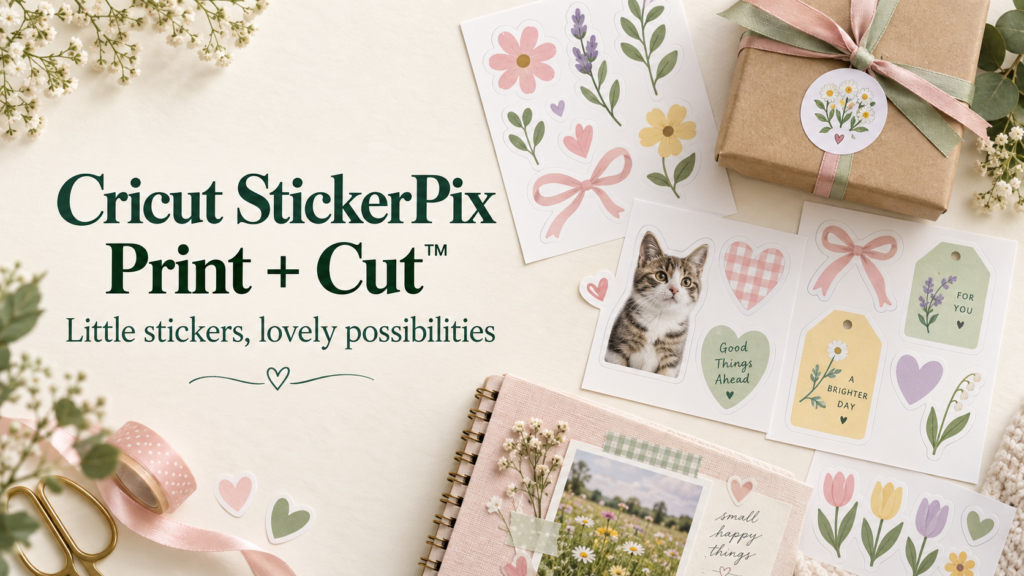
The Cricut StickerPix Print + Cut ™ brings printing and cutting together in one machine, opening up possibilities for crafters who enjoy those small finishing touches. Here’s a beginner-friendly look at what it offers, based on Cricut’s published information.
What does the Cricut StickerPix Print + Cut do?
The Cricut StickerPix Print + Cut is a sticker and photo printer with a built-in cutter. It can print your sticker designs and cut around their outlines, without needing a separate home printer. It also prints photographs.
It makes kiss-cut stickers. That means it cuts the sticky top layer while leaving the backing sheet intact, so you can peel your stickers off when you need them. Making it fantastic for those who want to create their own custom sticker sheets – especially of you love to create planners and journals. However, it doesn’t make die-cut stickers, where both the sticker and its backing are cut into individual shapes. Cricut’s product introduction
For crafters, a sheet of peel-off stickers could be useful for decorating journals, adding names to gift bags or keeping matching labels ready for your next batch of handmade presents.
You don’t have to design everything from scratch
The machine works with Cricut Design Space, the app where you create and prepare your projects. Those of you with a Cricut cutting machine already will be familiar with how to use Cricut Design Space. You can begin with a template, choose images and text, or upload your own artwork.
Cricut also offers photo-based sticker projects and AI-powered Sticker Transformations, with styles such as illustration and crayon drawing. These provide another starting point if you fancy experimenting with a favourite photo. Cricut’s sticker-making guide
Some software features require a paid subscription, so it’s worth checking which tools are included before choosing a machine or bundle. Cricut’s software information
A simple first project to try with your new Cricut StickerPix Print + Cut
A small sheet of “Handmade with love” stickers would make a lovely introduction.
Start with a blank sticker sheet in Design Space, add a simple shape and your wording, then choose colours that complement your wrapping paper. Adjust the border around the design and arrange copies on the sheet.
One useful detail: if your design contains several overlapping pieces that should become a single sticker, use Merge Sticker to combine them. Otherwise, they may be cut separately. When you’re happy with the arrangement, select Make, check the preview and follow the printing prompts. Cricut’s blank-sheet tutorial
For your first attempt, keep the lettering fairly large and the design uncluttered. A simple sticker can look beautiful, and it gives you room to learn without trying everything at once.
Ideas for your craft table
Once you have a first sheet under your belt, you could try:
- Matching stickers to seal envelopes and decorate birthday parcels.
- Labels for drawers of ribbons, buttons and paper scraps.
- Photo stickers to accompany handwritten scrapbook memories.
- Seasonal illustrations for journals and planners.
- Personalised labels for party favour bags.
Design Space includes label templates and options for customising text, colours, patterns and images, so you can carry a favourite style across several projects. Cricut’s label-making guide
What about paper, ink and space?
StickerPix Print + Cut uses dedicated supplies: 4 × 7-inch sticker sheets and 4 × 6-inch photo paper. Cricut lists its ink cartridge as providing 36 prints, and the printing process includes a clear protective laminate layer. Check that replacement packs are specifically labelled for StickerPix Print + Cut. Cricut’s materials guide
Cricut describes the finished prints as water-, scratch- and fade-resistant. That wording shouldn’t be treated as a promise that they are waterproof or dishwasher-safe. Cricut’s product details
You’ll also need a compatible Bluetooth-enabled phone, tablet or computer and a high-speed internet connection. When planning where to put the machine, allow room for the paper to move: Cricut’s setup guide calls for at least 30.5 cm of clear space on every side. Cricut’s setup guide
Could it suit your crafting?
The appeal is easy to see if you love making sticker sheets, decorating journals or adding personal touches to gifts. Before buying, think about the size of your projects and the ongoing cost of the matching paper and ink.
For a first make, choose something you’ll enjoy using straight away. A sheet of personalised gift stickers is a small project, but seeing your own design ready to peel and stick could be a lovely way to begin.